
Home › Infographics › How to prepare a photo for printing: 5 steps
How to prepare a photo for printing: 5 steps
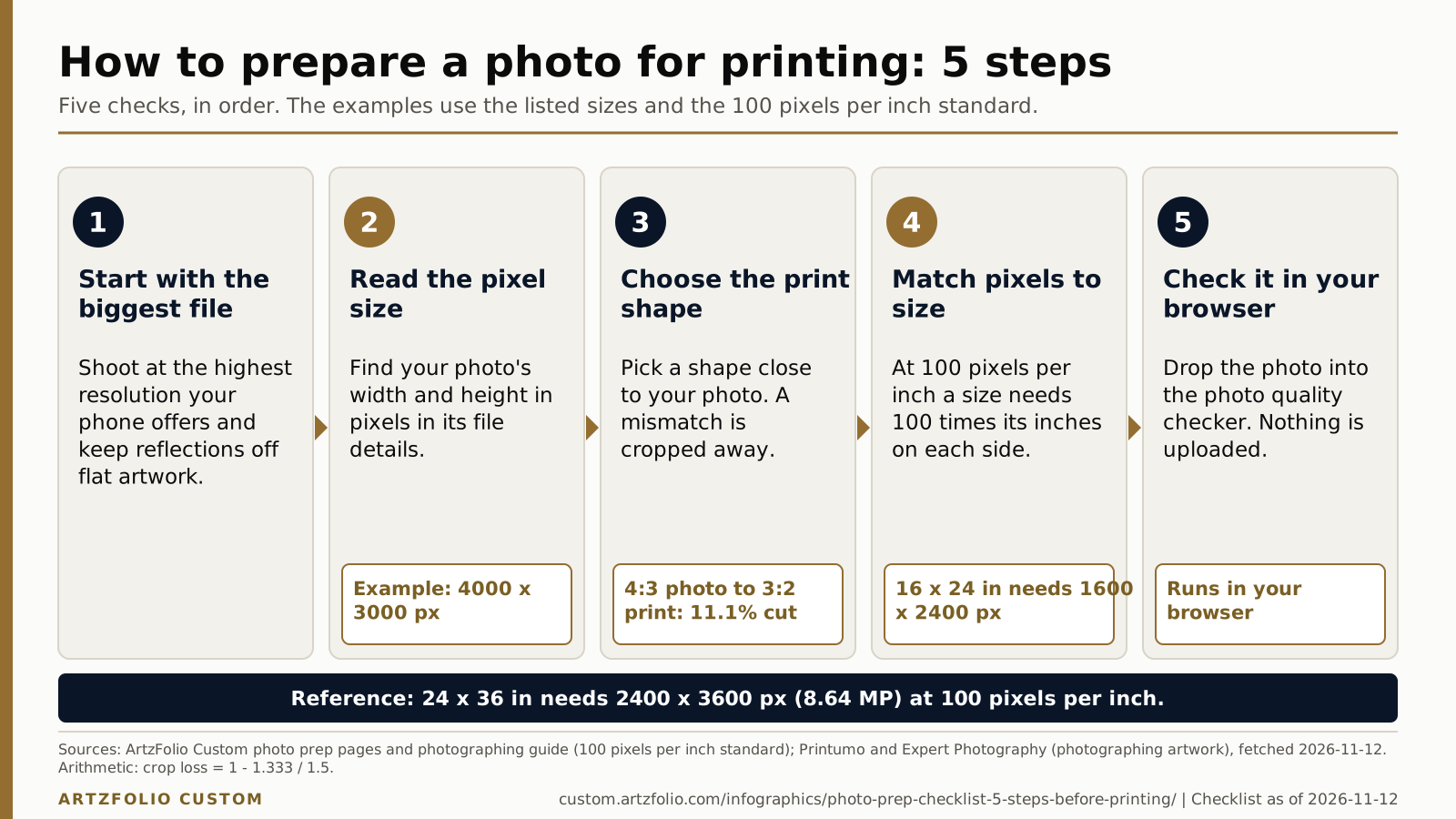
Prepare a photo for printing in five steps: start with the biggest file, read its pixel size, choose a print shape, match pixels to the size at 100 pixels per inch, and check it in the photo quality checker. A 16 x 24 inch print needs 1600 x 2400 pixels. Nothing is uploaded when you check in your browser.

Text version of this infographic
The same data as the figure, as text, for screen readers, search and AI tools.
| Step | What to do | Example |
|---|---|---|
| 1. Start with the biggest file | Shoot at the highest resolution your phone offers and keep reflections off flat artwork. | None |
| 2. Read the pixel size | Find your photo's width and height in pixels in its file details. | Example: 4000 x 3000 px |
| 3. Choose the print shape | Pick a shape close to your photo. A mismatch is cropped away. | 4:3 photo to 3:2 print: 11.1% cut |
| 4. Match pixels to size | At 100 pixels per inch a size needs 100 times its inches on each side. | 16 x 24 in needs 1600 x 2400 px |
| 5. Check it in your browser | Drop the photo into the photo quality checker. Nothing is uploaded. | Runs in your browser |
| Size (in) | Pixels wide x high | Megapixels |
|---|---|---|
| 16 x 24 | 1600 x 2400 | 3.84 |
| 24 x 36 | 2400 x 3600 | 8.64 |
How to use this infographic
- Work through the five steps in order, writing down your photo size in pixels.
- Compare it with the pixels shown for your chosen size.
- Run the photo quality checker for a final look; it runs in your browser.
Questions
How many pixels does a 16 x 24 inch print need?
At 100 pixels per inch it needs 1600 x 2400 pixels, which is 3.84 megapixels.
What is crop loss?
It is the share of a photo cut away when the photo is fitted to a different print shape. A 4:3 photo on a 3:2 print loses 11.1 percent.
Is my photo uploaded when I check it?
No. The photo quality checker tests the photo in your browser and nothing is uploaded.
Sources
- ArtzFolio Custom: photograph artwork or prepare a phone photo for printing (page as of 2026-11-12)
- Printumo: how to photograph artwork for print (fetched 2026-11-12)
- Expert Photography: the easy guide to photographing artwork (fetched 2026-11-12)
- ArtzFolio Custom: photo prep pages (page as of 2026-11-10)
Checklist as of 2026-11-12. Figures are paraphrased or computed from the sources above; the figure carries its own source line. Confirm live prices and terms with ArtzFolio Custom before you order.